User Guide
From your first time entry to a reviewed week and a clear report. Screenshots show the current product using demo data, captured in September 2026. Select a screenshot to open it at full size.
Dashboard
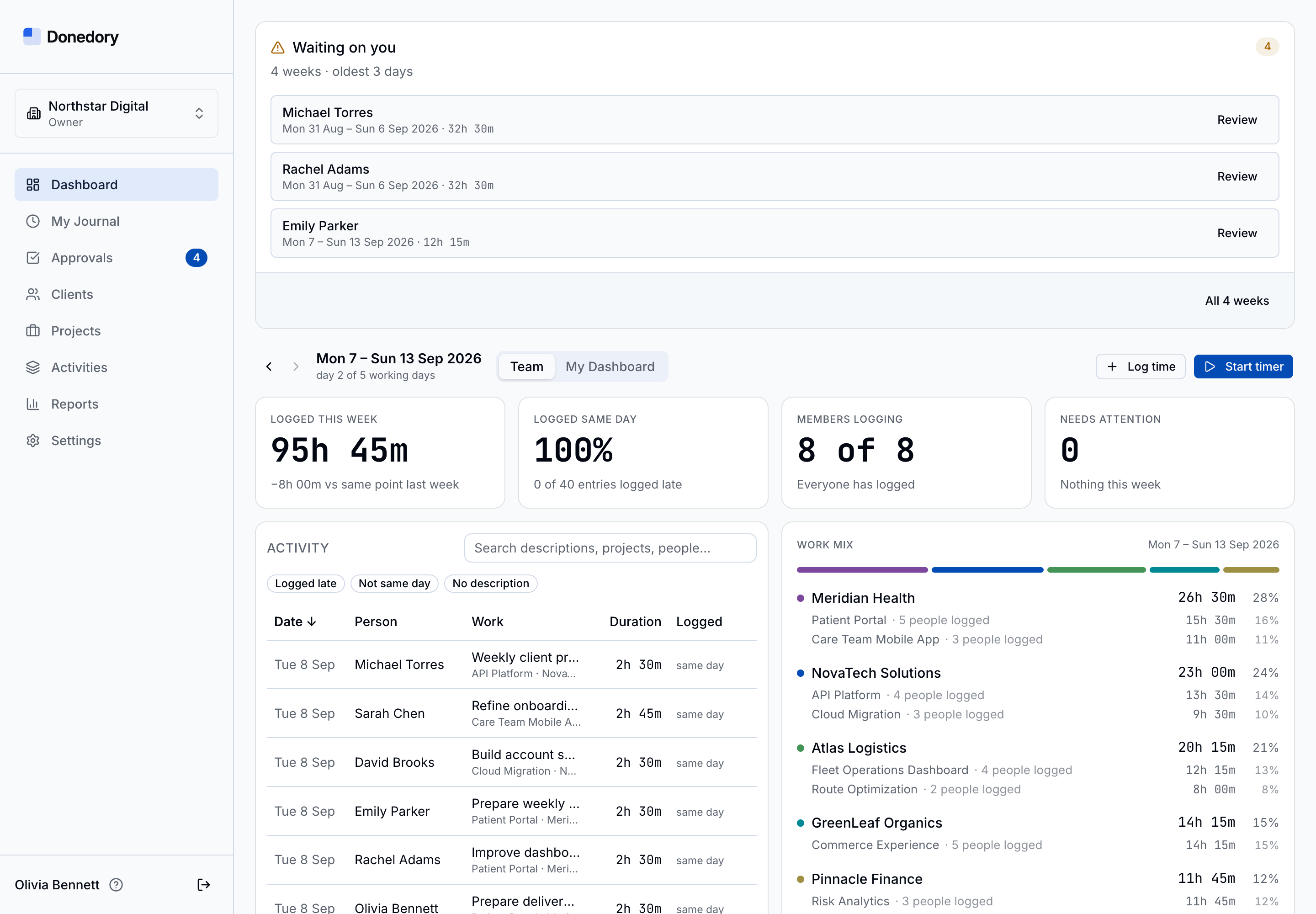
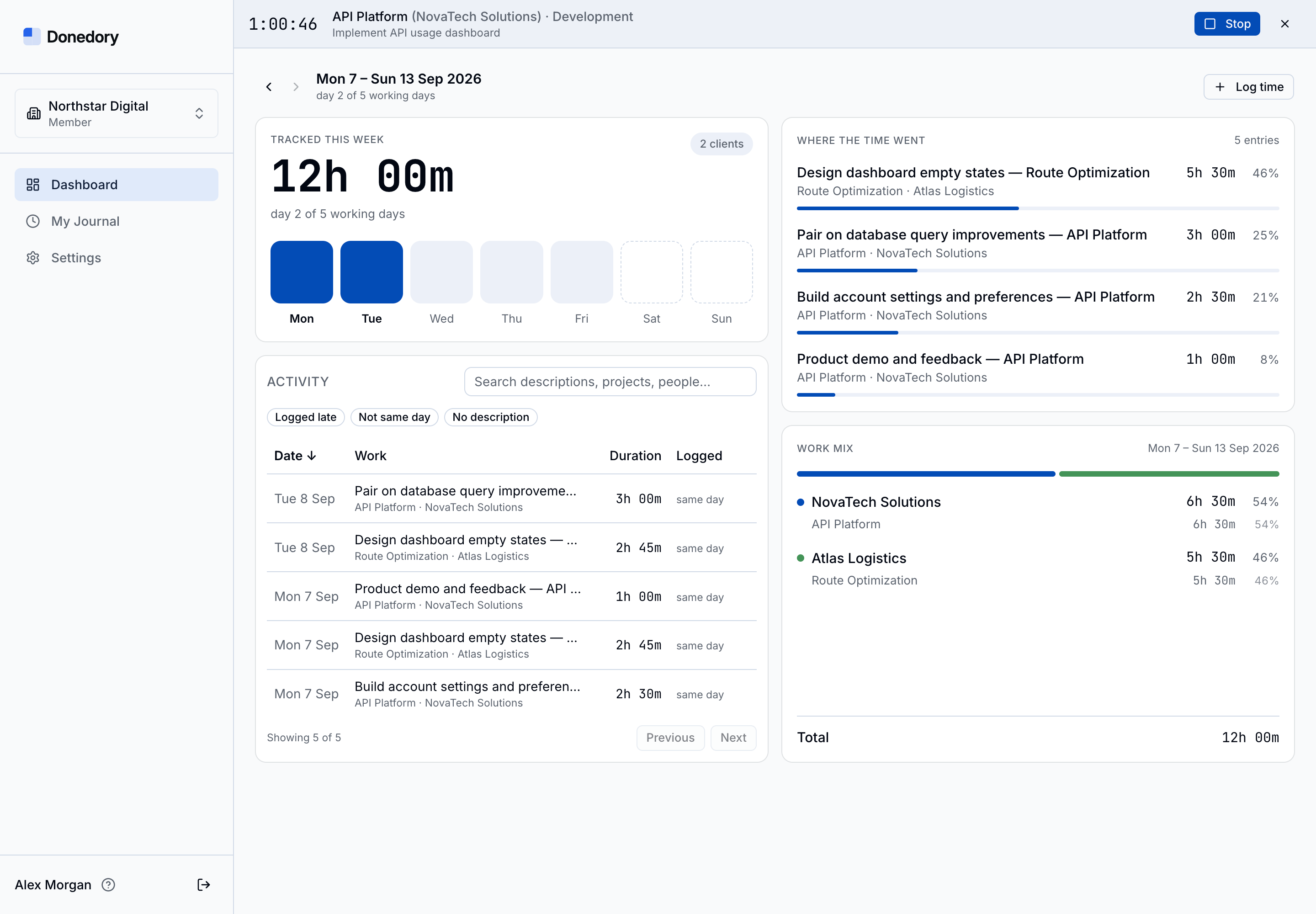
See the current week’s hours, recent activity, and work split by client and project. Use the week arrows to move through time. Owners, admins, and project managers can use the Team view; My Dashboard focuses on your own work.
Tips
- The Team view shows logged hours, same-day logging, members logging, and entries needing attention.
- Search recent activity or use Logged late, Not same day, and No description to focus your review.
- The Work mix panel shows clients and their projects. Managers can open people or projects in Reports.
My Journal
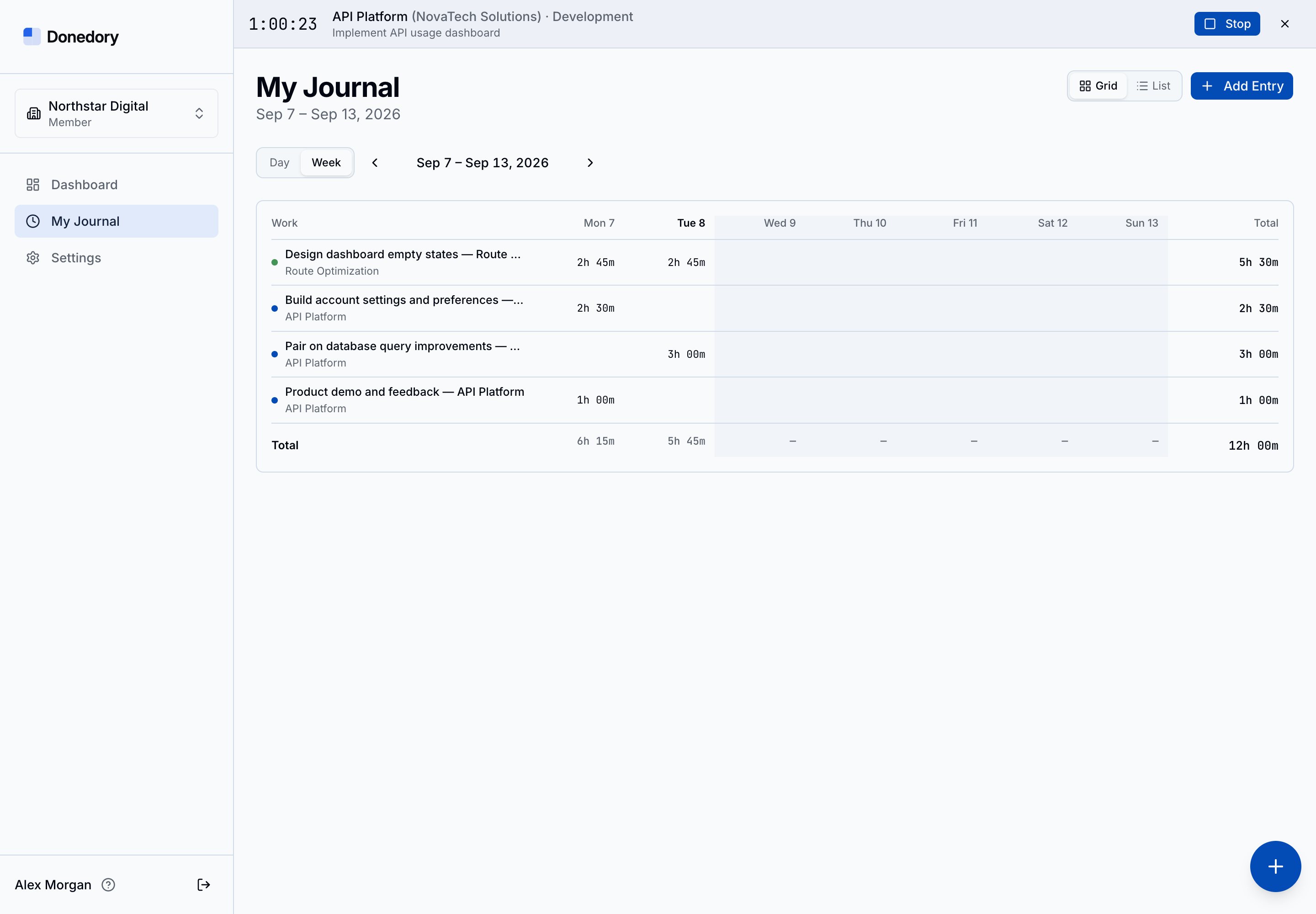
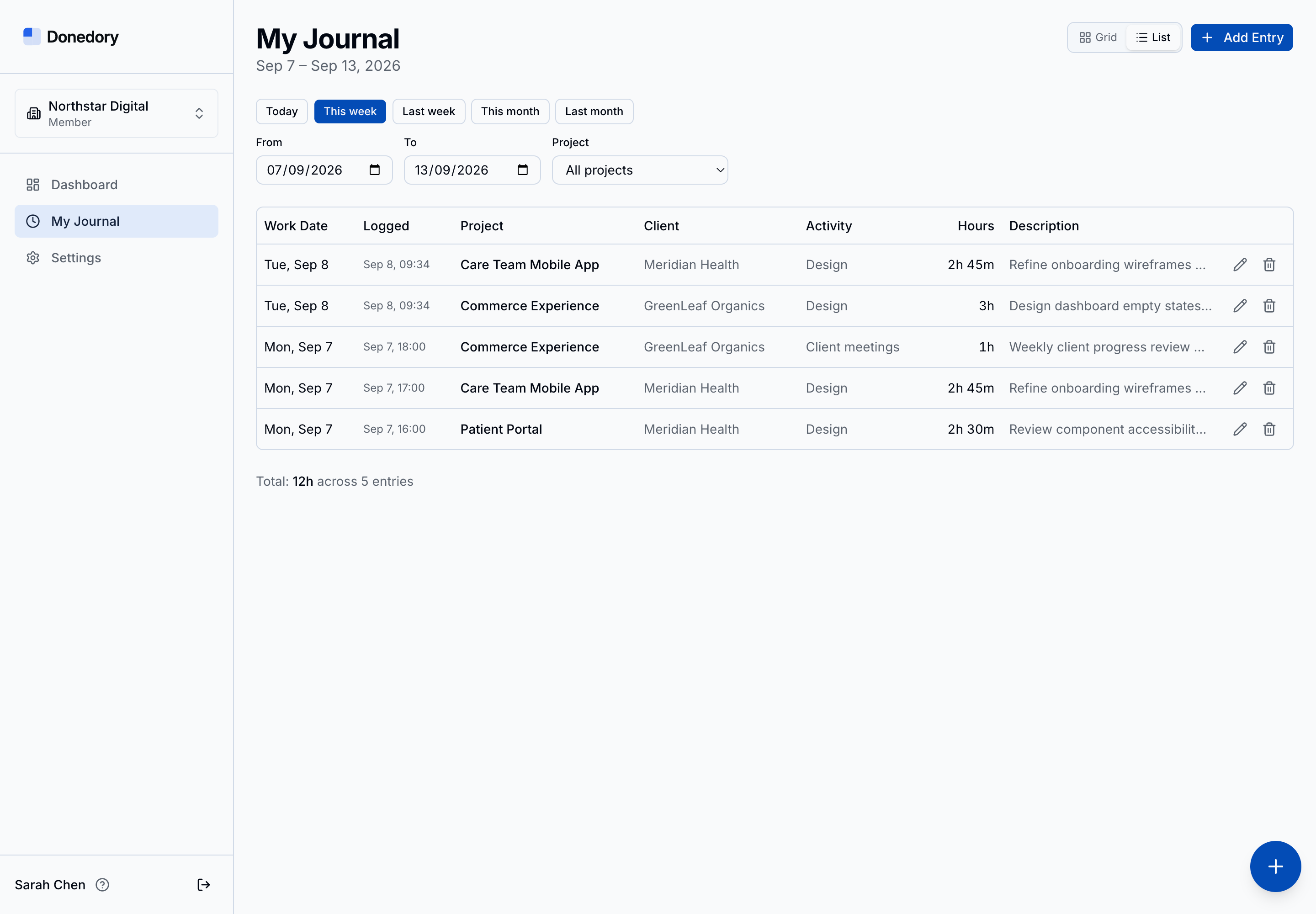
Use Grid for a day or week at a glance, or List for individual entries and date-range filters. The weekly grid also shows your submission status when approvals apply to you. Your project access determines which work you can log.
Tips
- Use Add Entry or the floating Log time button to enter work.
- In the grid, click an existing duration to edit it or an empty available cell to add time.
- The List view includes Today, This week, Last week, This month, Last month, and custom dates.
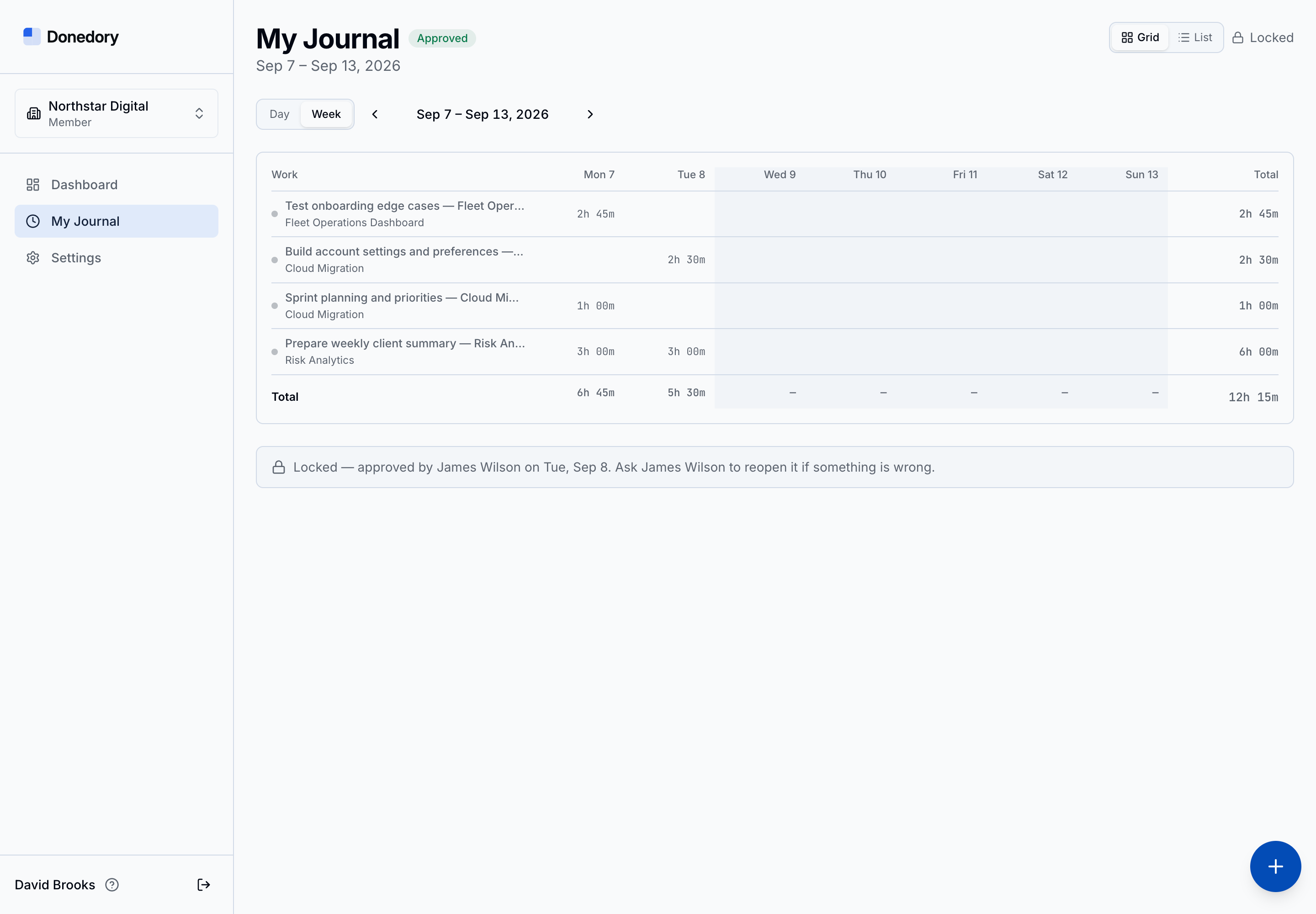
- Approved weeks are locked while approvals apply. Editing a submitted week removes it from the review queue, so submit it again when ready.
Logging time manually
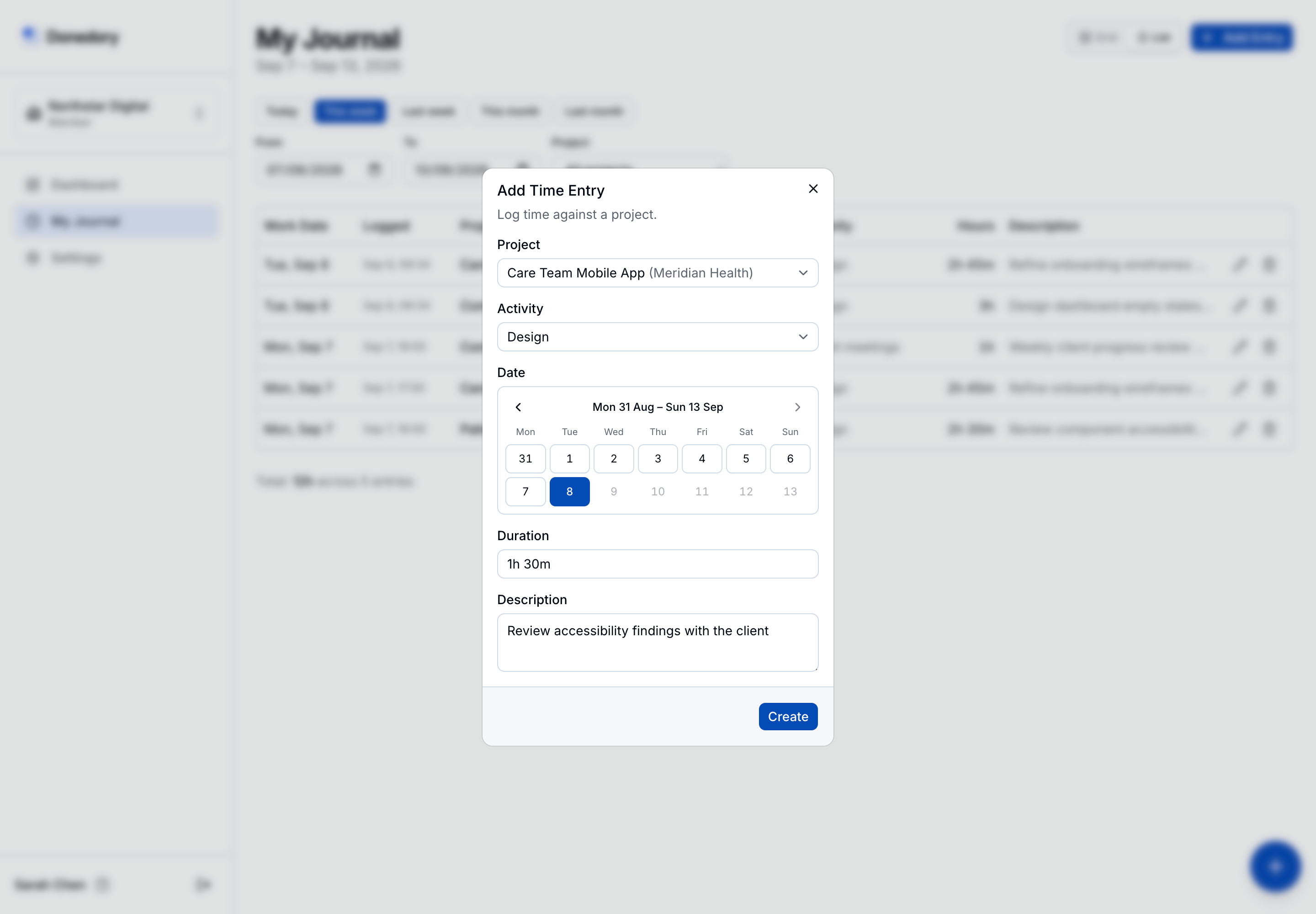
Open Add Entry in My Journal or use Log time. Choose the project, add an optional activity, select the work date, enter a duration, and add a description. Select Create to save the entry.
Tips
- Enter durations such as 1h 30m, 1:30, or 1.5. Time is stored to the second without quarter-hour rounding.
- Activities depend on the selected project’s client.
- The date picker provides two weeks at a time; Earlier weeks lets you enter older work.
- Future dates and locked weeks cannot receive new time entries.
Tracking with a timer
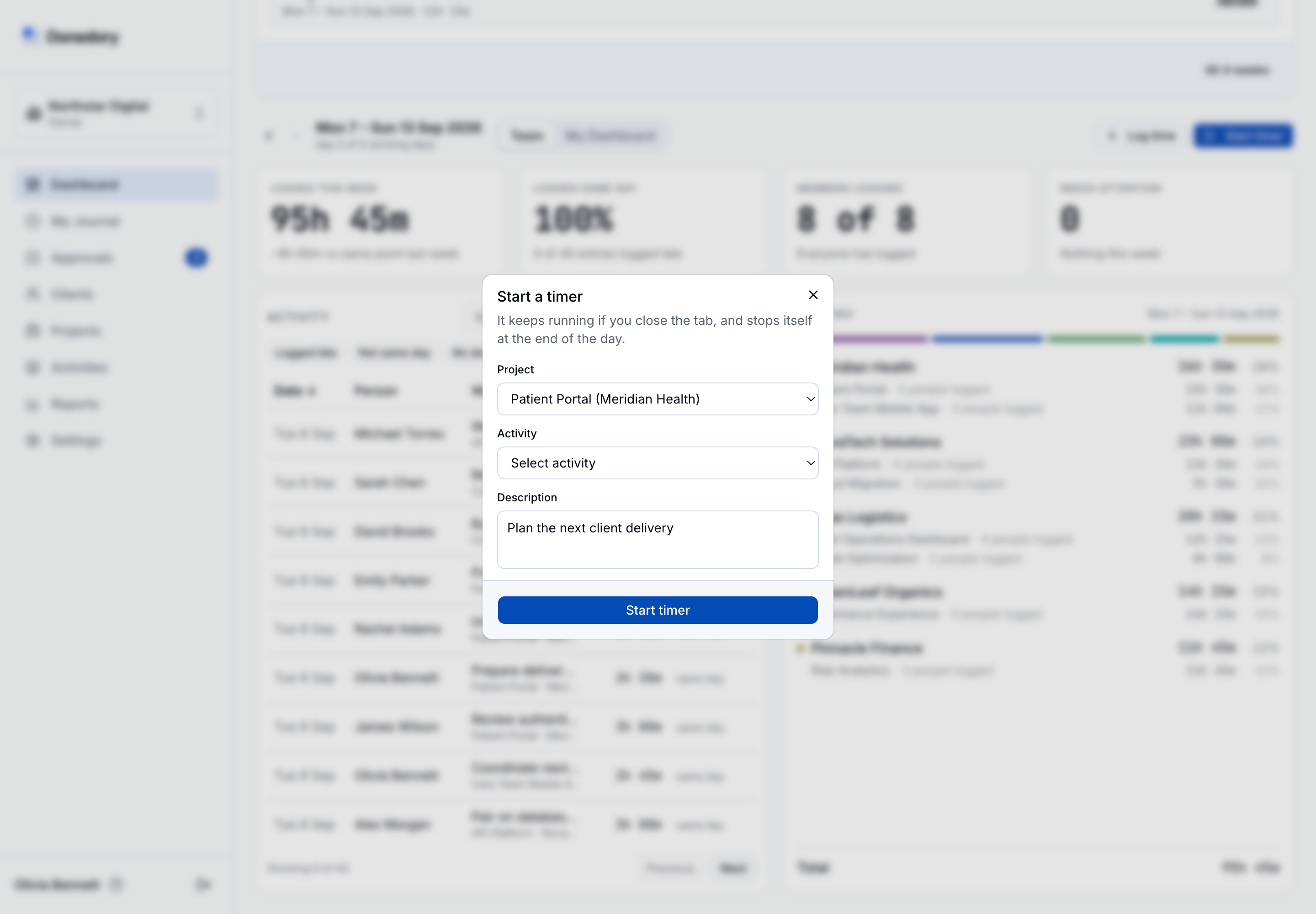
Choose Start timer on the dashboard, select a project, and optionally add an activity and description. The running timer stays visible as you move around Donedory. Stop saves the elapsed time as a time entry; Discard timer ends it without saving an entry.
Tips
- A timer keeps running when you close the tab. Reopen Donedory to see the same timer.
- Only one timer can run for you in a workspace at a time.
- Timers stop automatically after 12 hours or at the end of the day in their recorded time zone, whichever comes first.
- Manual entry remains available alongside the timer.
Optional weekly approvals
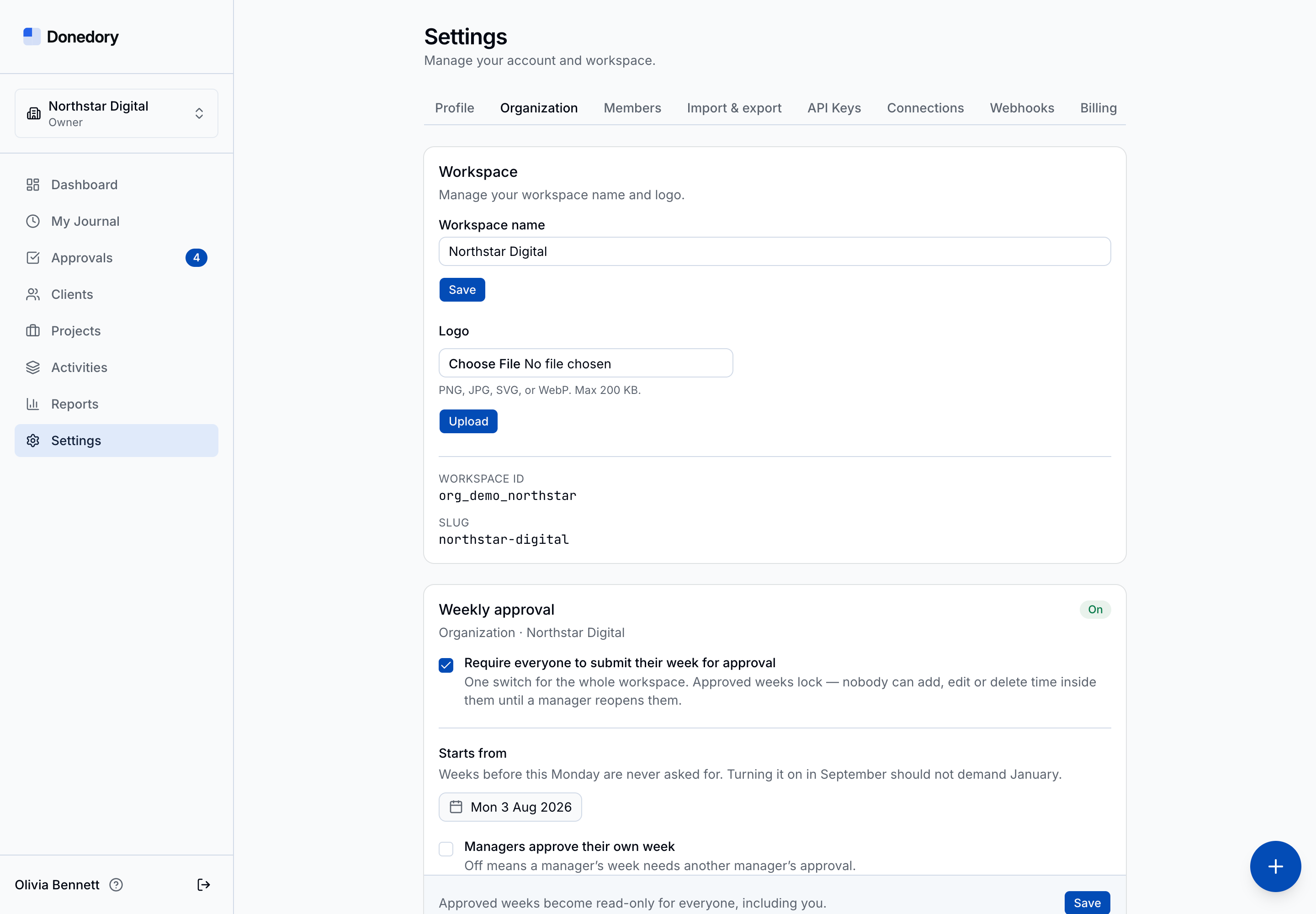
The workspace owner can enable weekly approvals in Settings → Organization, choose the first week covered, and configure whether managers may approve their own weeks. In Settings → Members, the owner can set individual exemptions and named approvers. Approvals apply to a whole person’s week, across its entries.
Tips
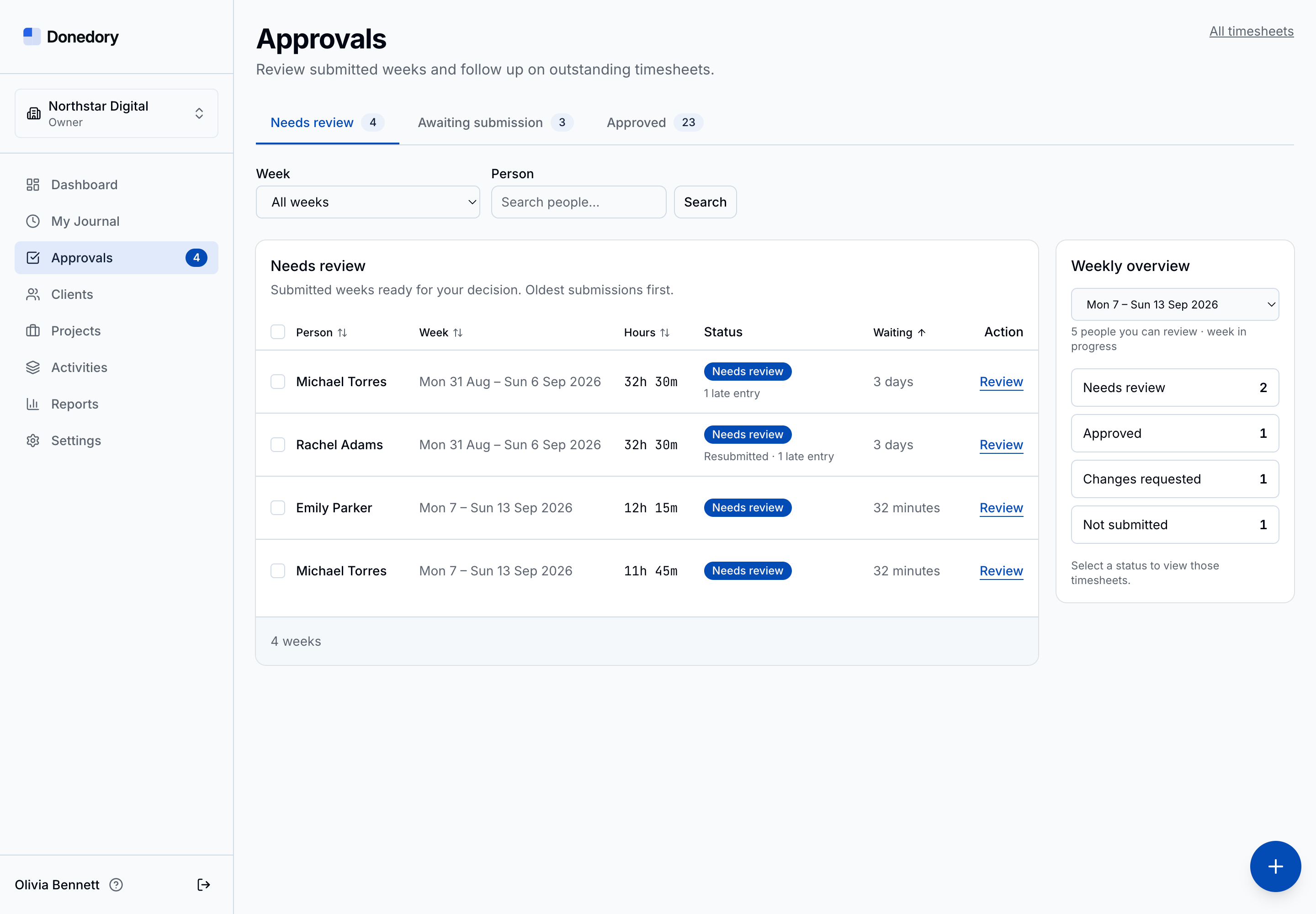
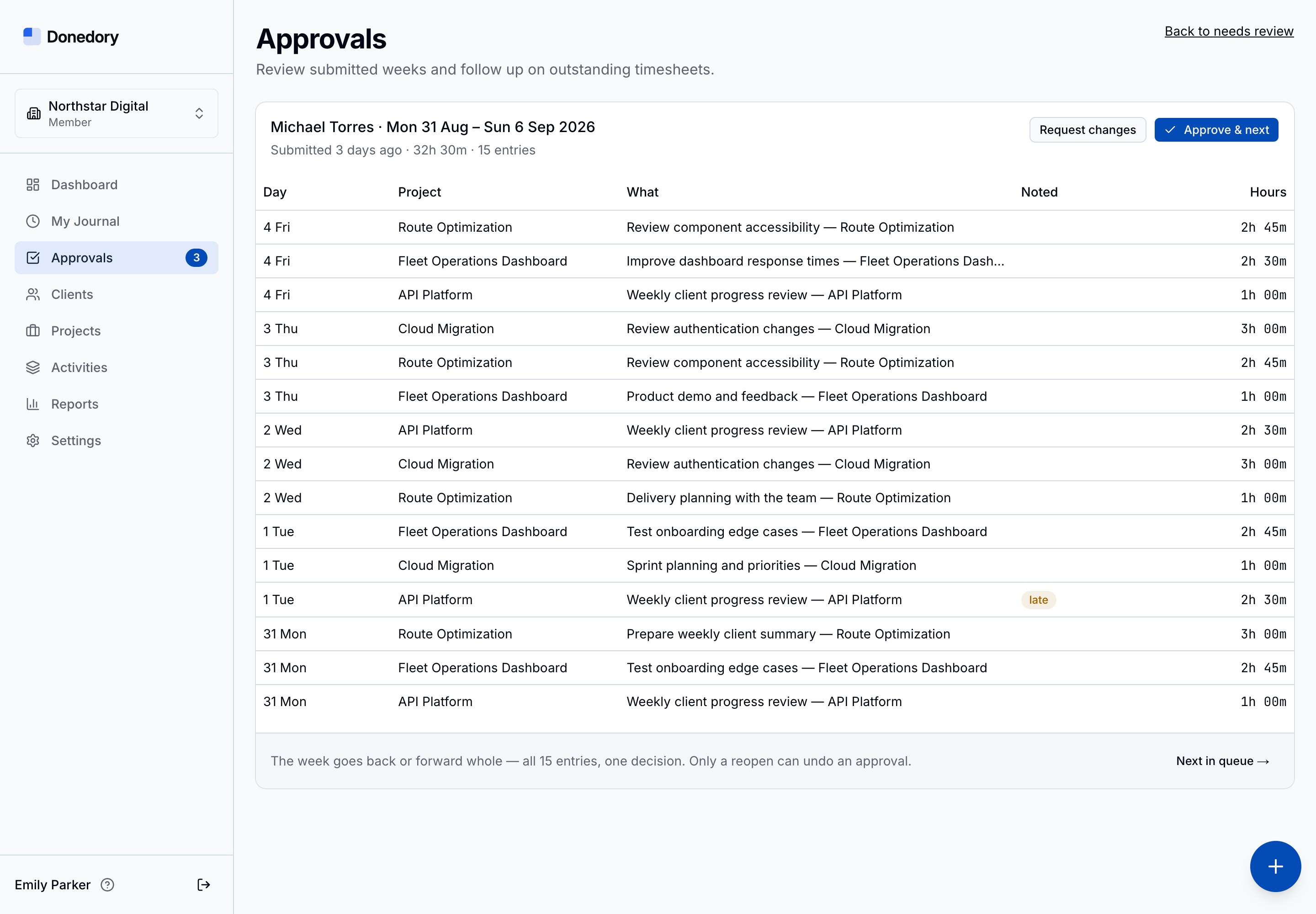
- Use Needs review for submitted weeks, Awaiting submission for missing or returned weeks, and Approved for completed reviews. Filter by week or person.
- Owners and admins can review across the workspace. Named approvers review their assigned people; project-manager access alone does not assign someone as a person’s approver.
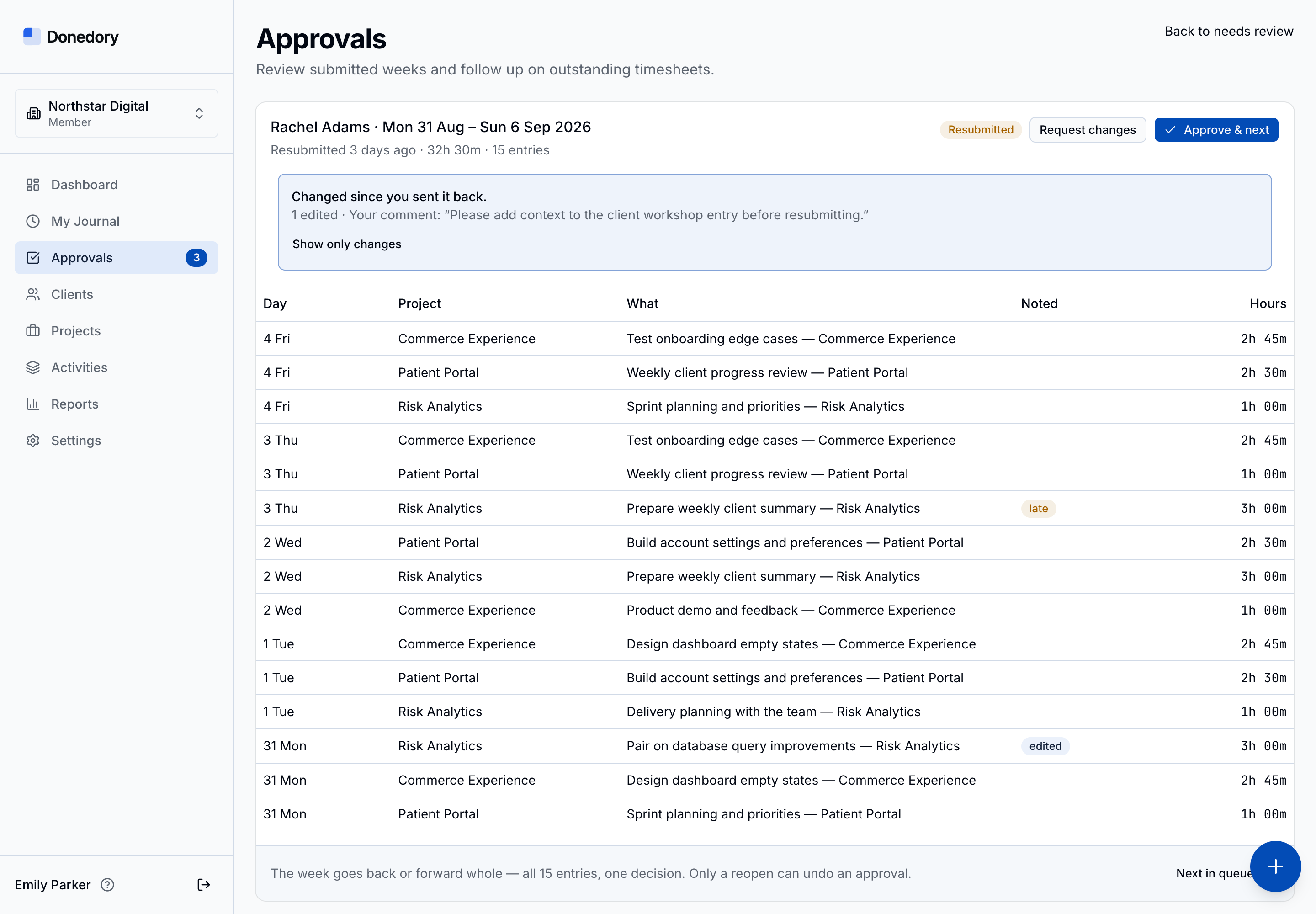
- Approve & next approves the whole week and moves through the queue. Request changes returns it with feedback.
- The weekly overview links to Needs review, Approved, Changes requested, and Not submitted for the selected week.
Feedback, resubmission, and locks
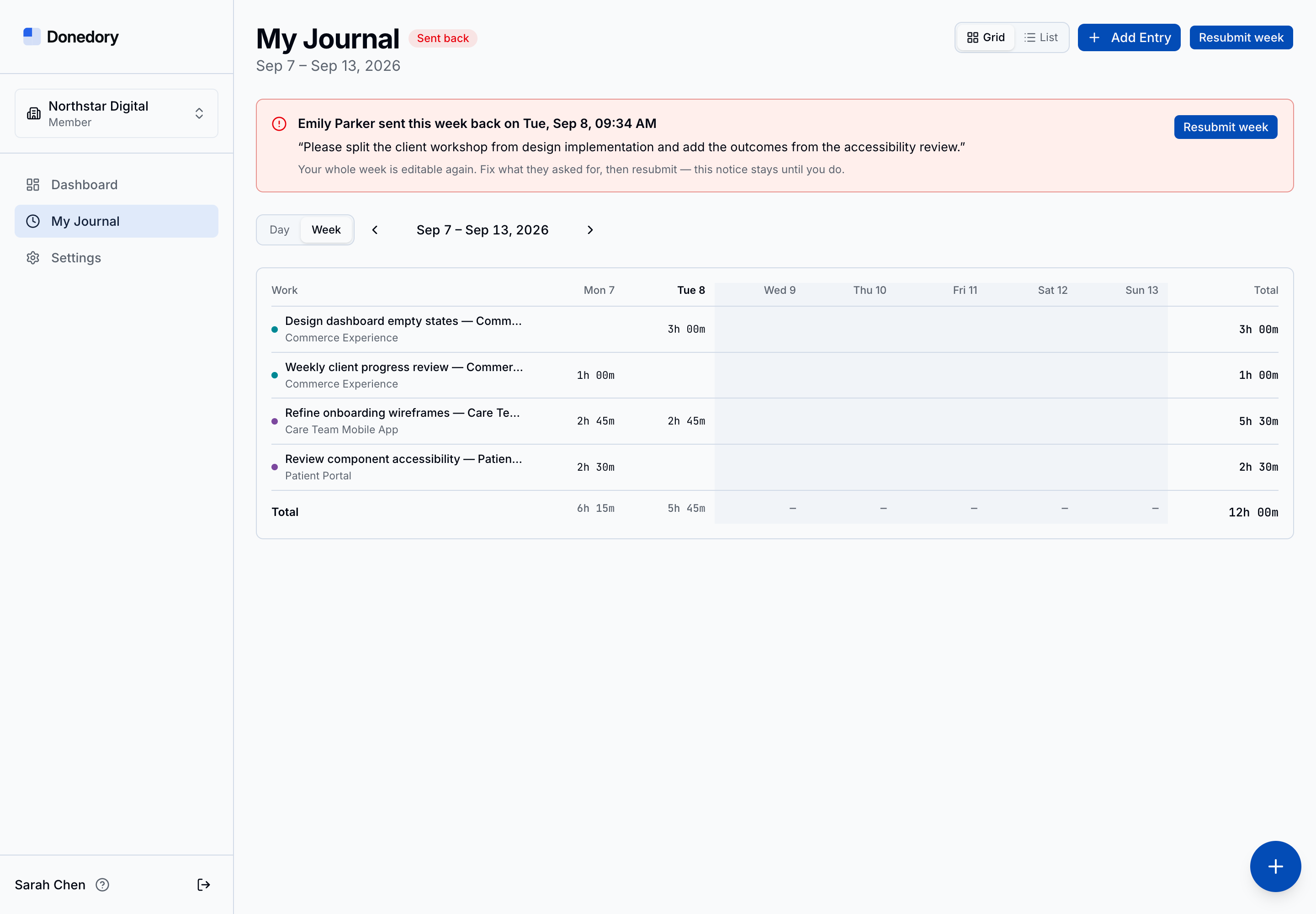
When a week is sent back, My Journal shows the reviewer’s comment and makes the week editable again. Make the requested changes and choose Resubmit week. Reviewers can see what changed since they returned the earlier submission.
Tips
- A pending submission can be withdrawn. Editing its entries also returns the week to open, taking it out of the review queue until you submit it again.
- While approvals apply, approved weeks are read-only for everyone. An authorized reviewer can reopen a week for corrections.
- Exempt members do not need to submit weeks. Turning approvals off removes the submission requirement and approval locks.
Clients
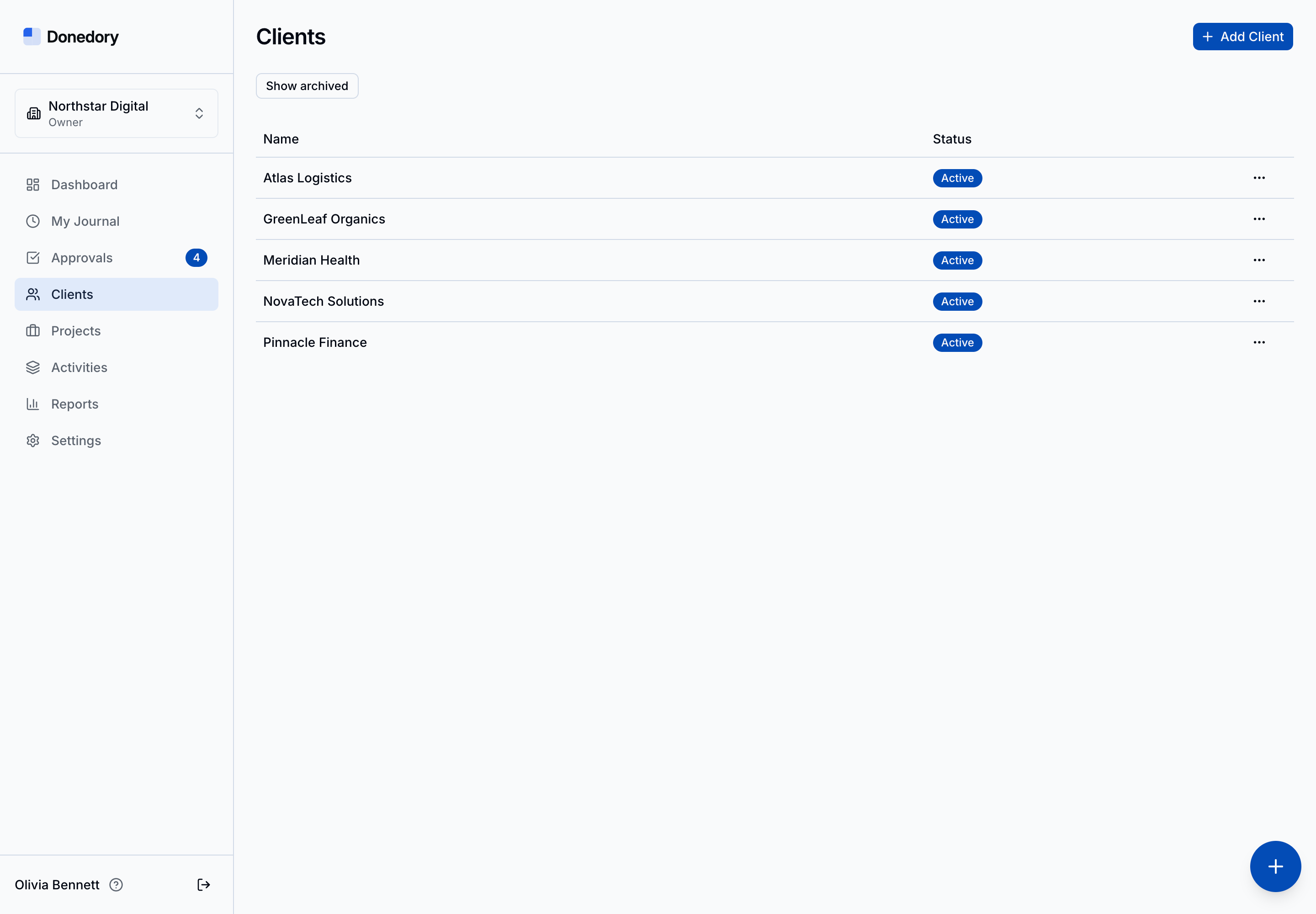
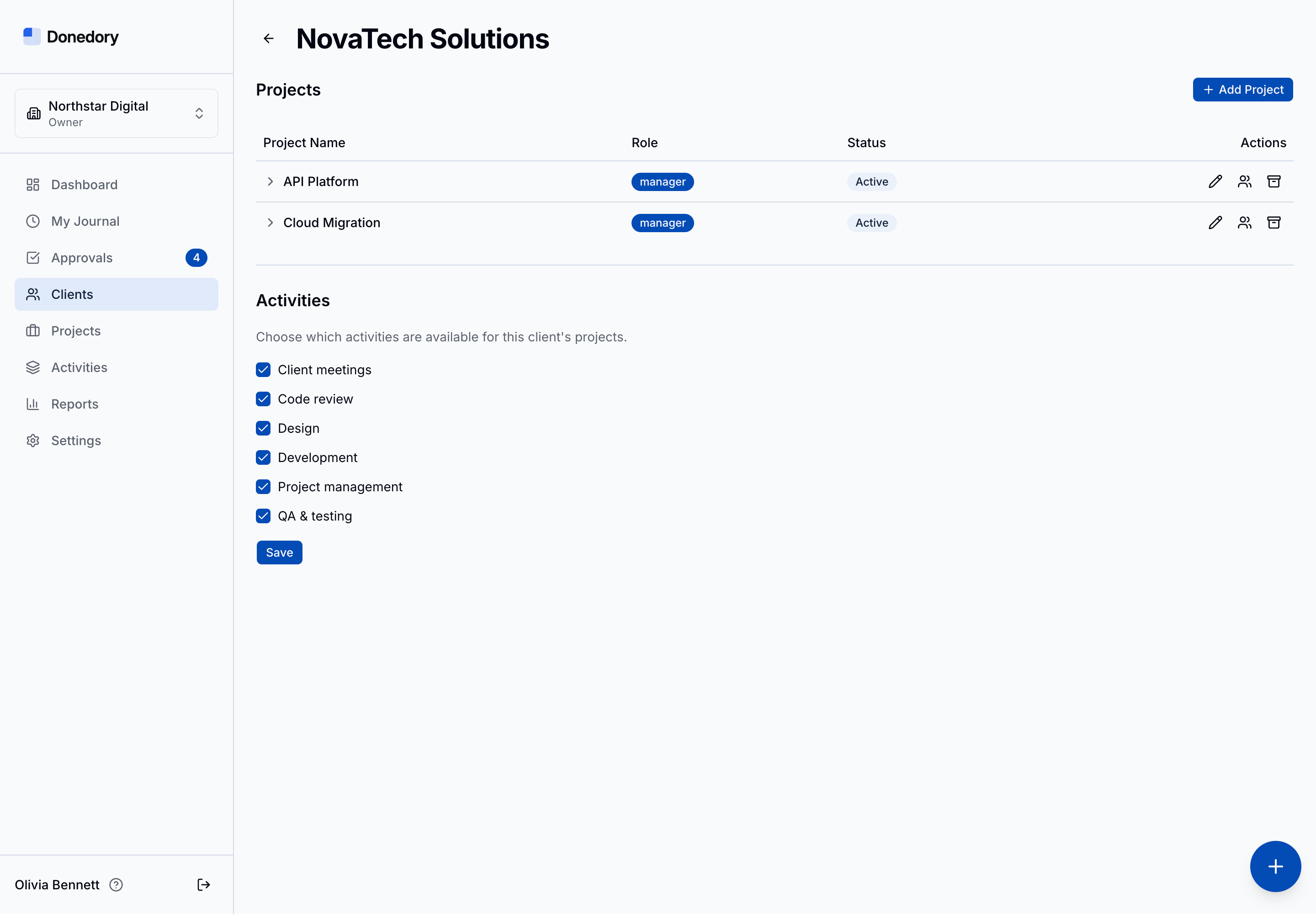
Clients group your projects and their hours. Management users can add clients, open a client’s projects, and choose which activities are available for that client’s work. Archive inactive clients when you no longer need them for new work.
Tips
- Use Show archived to find archived clients.
- Client detail includes Add Project, project editing, and member management for users with permission.
- Historical time remains available when a client is archived.
Projects and access
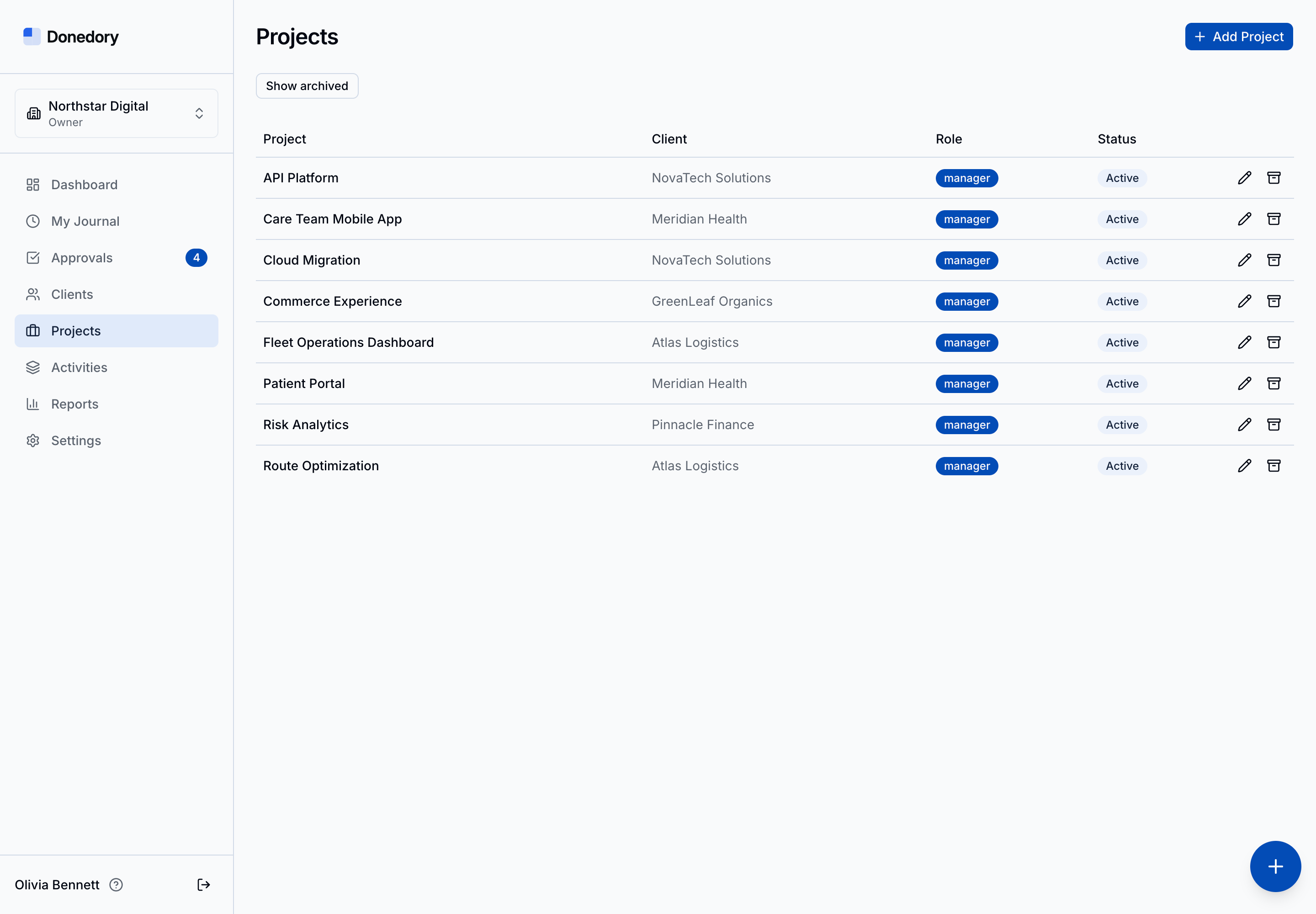
Projects belong to clients. Each project can give a member either manager or employee access. Managers can manage their projects and review their time data; employees log their own work on assigned projects. Workspace owners and admins have broader management access.
Tips
- Someone may manage one project and be an employee on another.
- Manage project members from the client’s project list.
- Workspace roles and named timesheet approvers are separate from project roles.
Activities
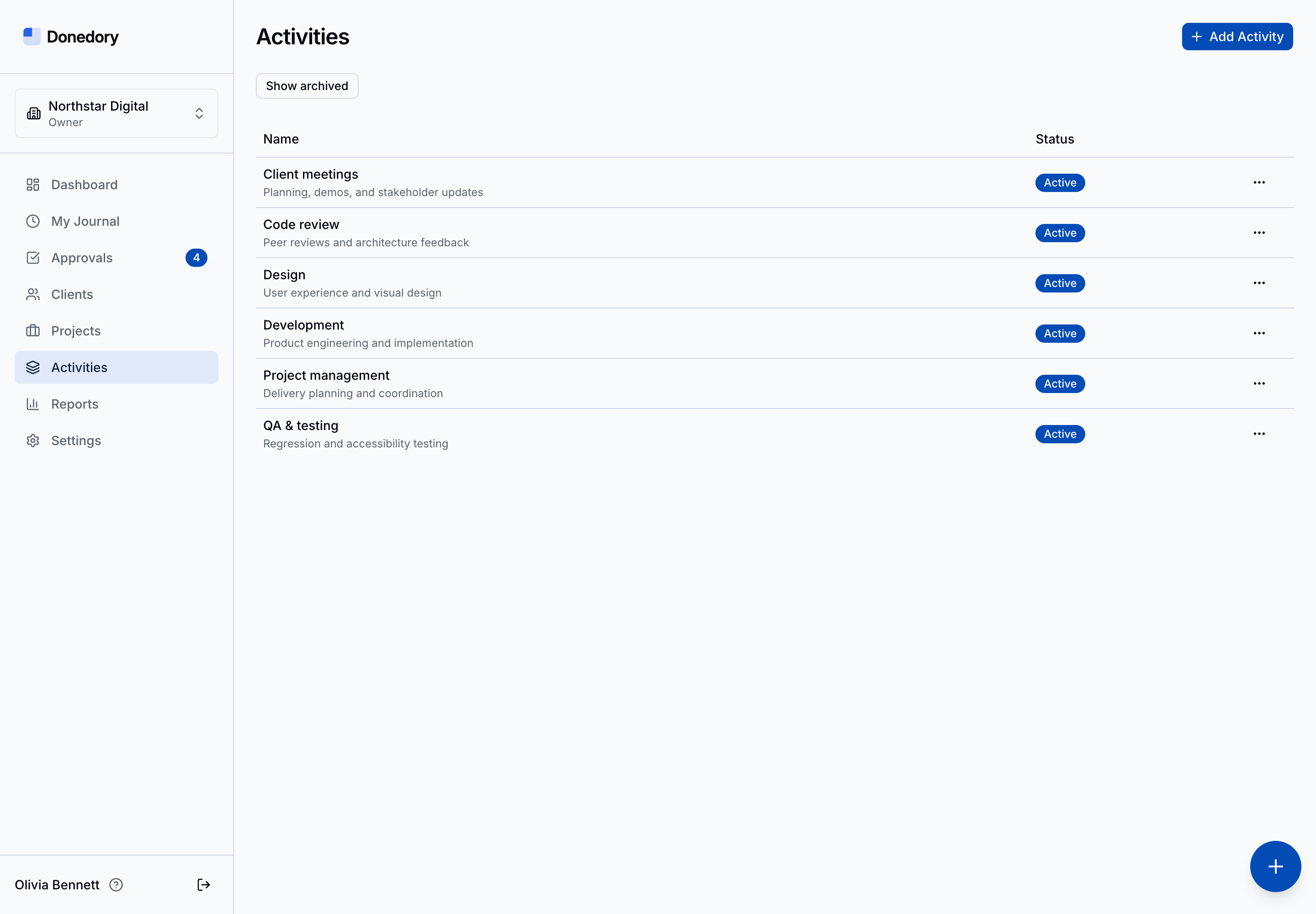
Activities describe the kind of work, such as development, design, or client meetings. Management users maintain the activity catalog, then enable the relevant activities for each client.
Tips
- Open a client to choose which activities are available on its projects.
- Activities are optional on time entries and timers.
- Use Show archived to find inactive activity types.
Reports and billing handoff
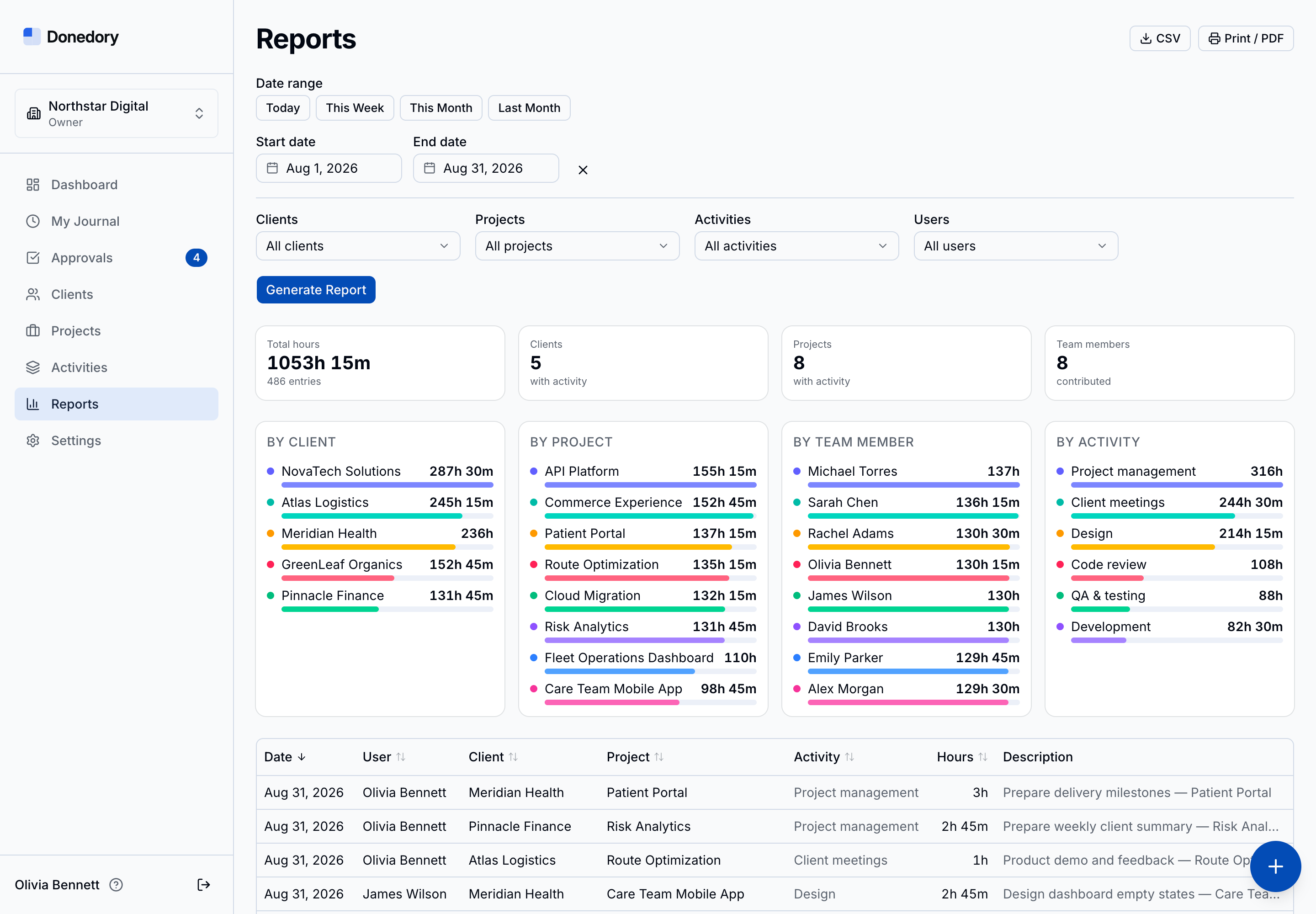
Select a date range and optionally filter by clients, projects, activities, or users. Generate Report shows total hours, counts, breakdowns, and the underlying entries. Download CSV or choose Print / PDF to export the report for your billing workflow.
Tips
- Today, This Week, This Month, and Last Month provide quick date ranges.
- Use column headings to sort the detailed entries and pagination to review more rows.
- Report visibility follows your permissions. Data export in Settings is separate from a filtered report export.
- Donedory does not create invoices or process client payments; use your existing accounting tool.
Import and export
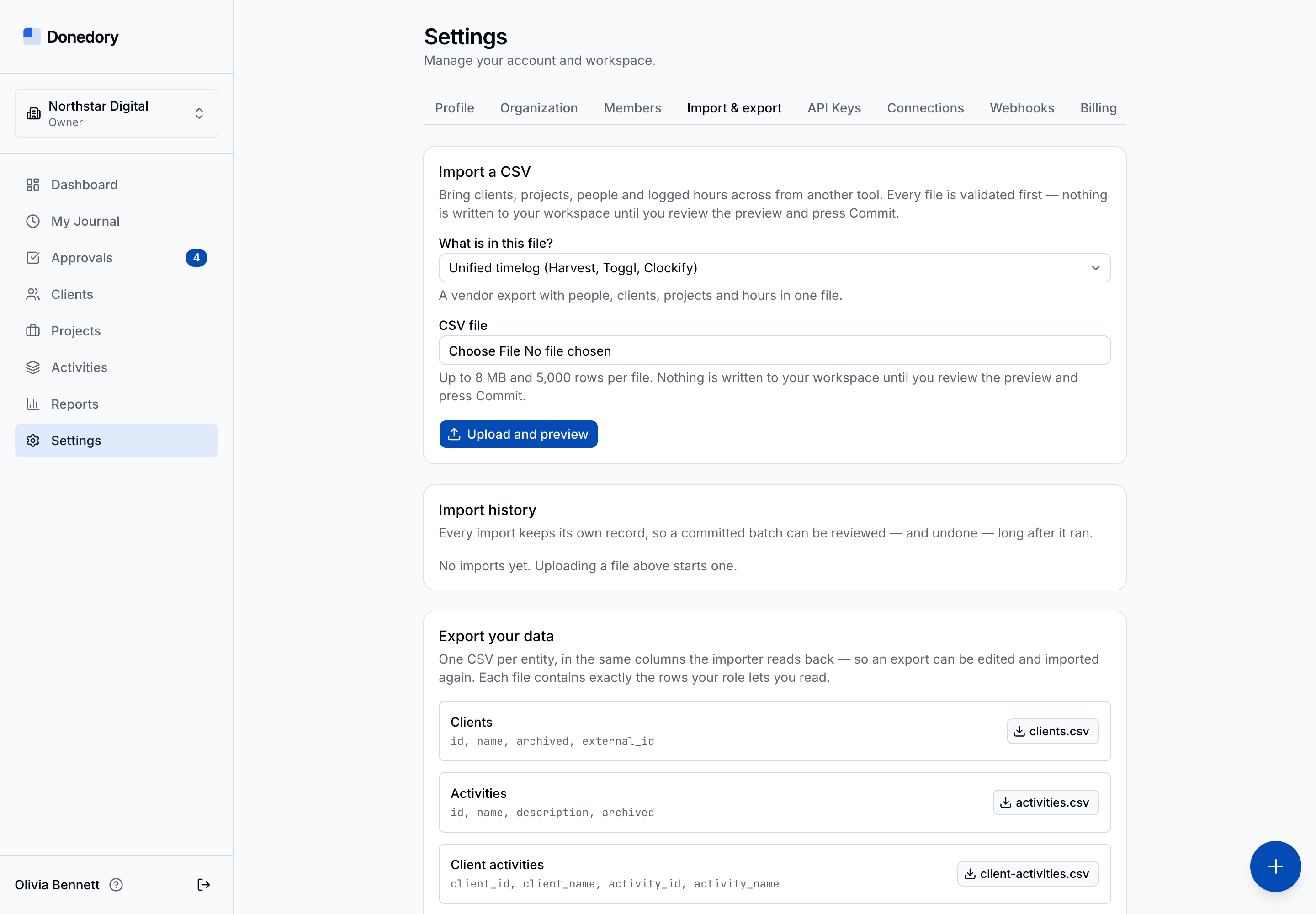
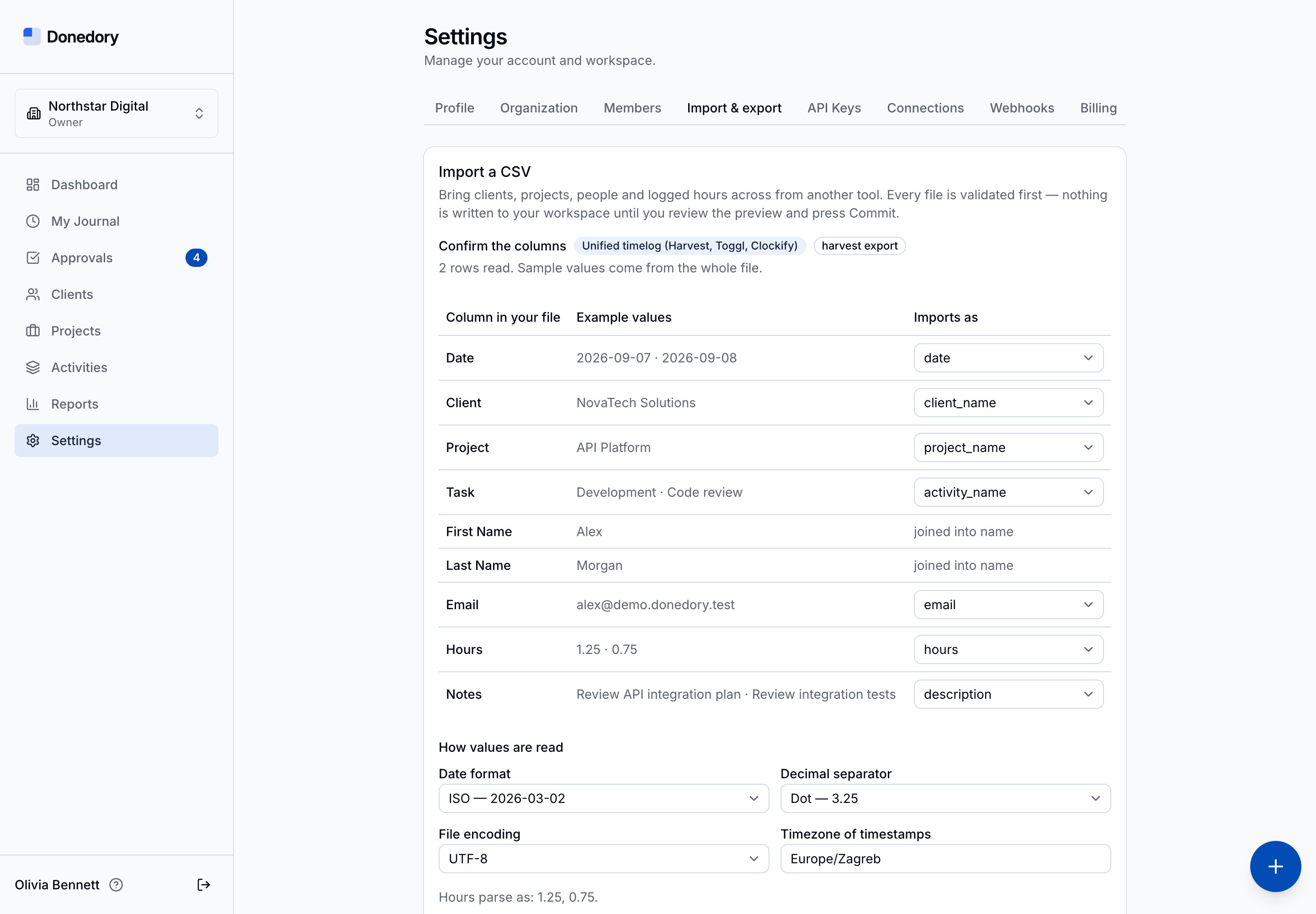
Settings → Import & export supports CSV files for people, clients, activities, client activities, projects, project members, and time entries. Unified timelog accepts detailed exports from Harvest, Toggl, and Clockify. Download the provided templates when preparing your own files.
Tips
- Choose the file type, select a CSV, and use Upload and preview. Files are limited to 8 MB and 5,000 source rows.
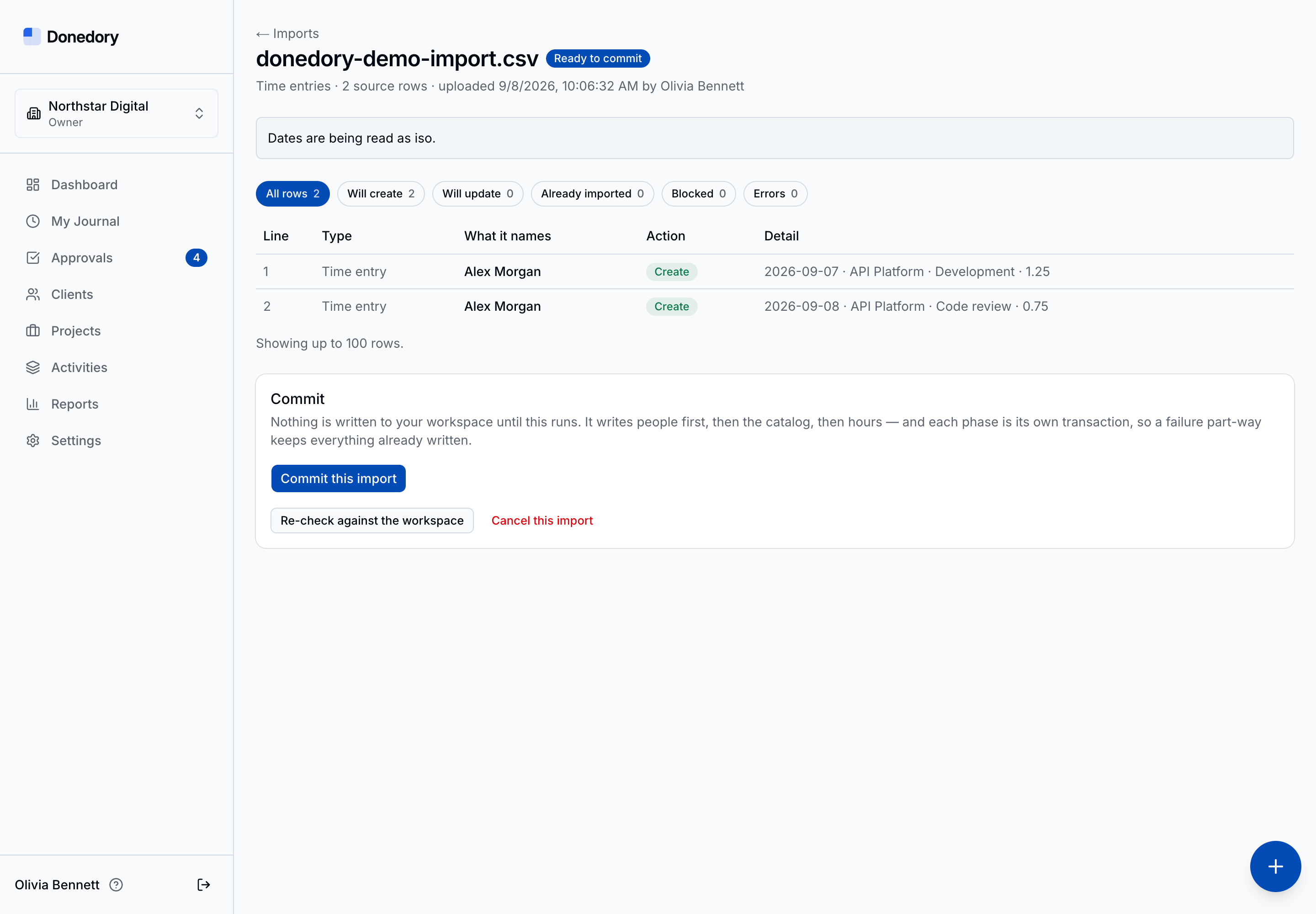
- Confirm the column mapping and value formats. Review Will create, Will update, Already imported, Blocked, and Errors before committing.
- Nothing is written to workspace records until Commit this import. Fix blocked or invalid rows and re-check the preview first.
- Imports respect your permissions. Adding people requires an owner or admin; other rows depend on the relevant management access.
- Export your data provides one CSV per entity, limited to records your role can read. These files can be edited and imported again.
- Owners and admins can undo committed imports, subject to safeguards for later edits and dependent work. People are not deleted by undo.
- Vendor-specific billing, invoice, and approval fields are not carried across as a complete billing or approval history. Review ignored columns before committing.
Connecting AI tools through MCP
Add https://donedory.app/api/mcp to a compatible MCP client using Streamable HTTP, then sign in through the browser and approve the workspace and requested access. Connections use your permissions and the scopes you grant.
Connect to Donedory
Claude Code
claude mcp add --transport http donedory https://donedory.app/api/mcpMCP server URL
https://donedory.app/api/mcpUse Streamable HTTP, then sign in and approve access to your workspace.
Tips
- The Connections page provides a copyable Claude Code command and an endpoint for other compatible clients.
- Supported tools cover project and client lookup, time entries, timers, reports, and weekly approvals. Availability depends on your role and granted scopes.
- For example, a connected tool with report access can request a client’s hours for a date range. Time-write access supports starting and stopping your timer.
- Review or revoke your own connections in Settings → Connections. Owners and admins can also manage workspace connections.
- MCP connections are separate from REST API keys and webhook subscriptions.
Settings: Members
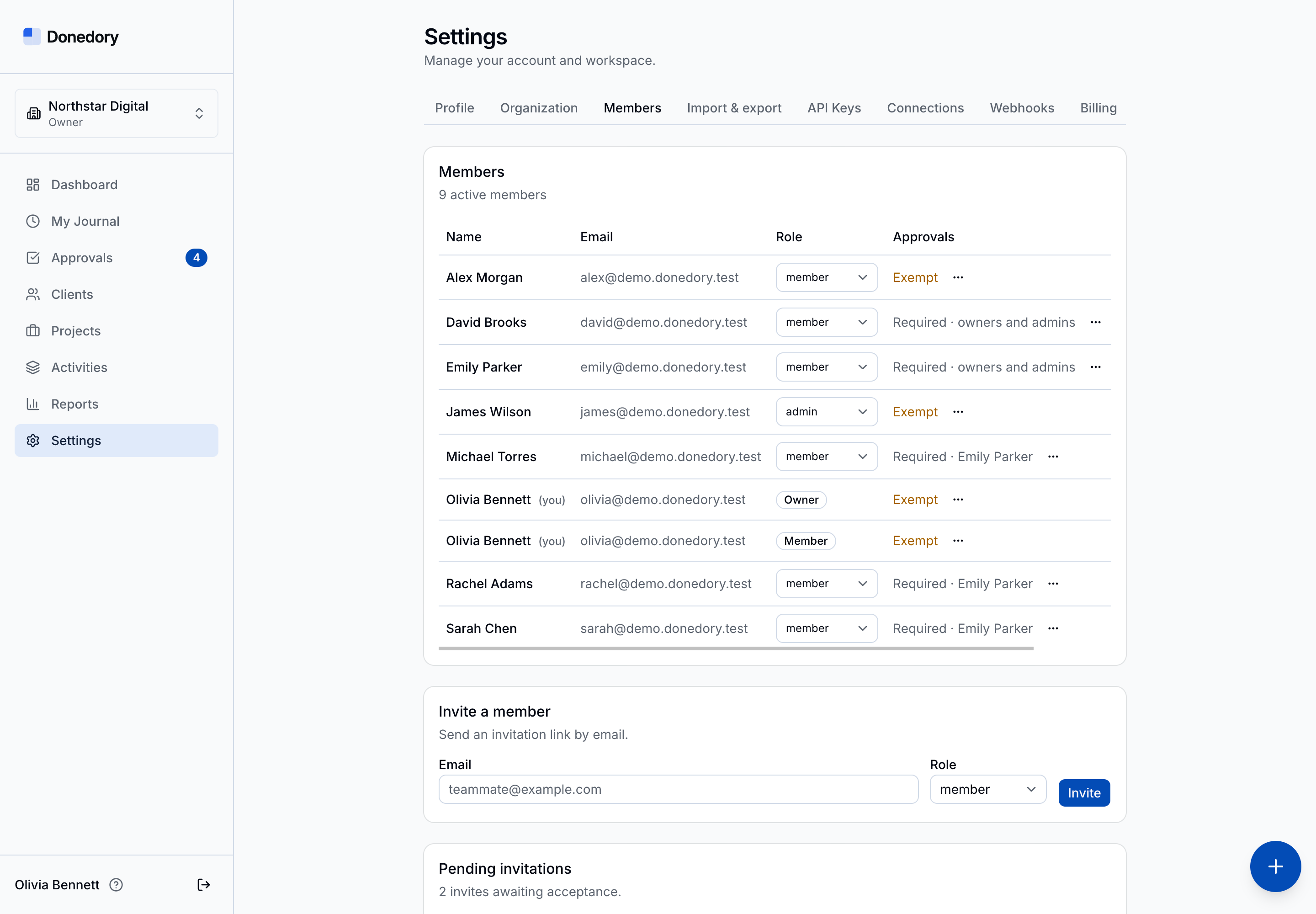
Owners and admins manage workspace membership from Settings → Members. Review roles, invite a member or admin by email, and manage pending invitations. Individual approval settings control whether someone must submit time and who reviews it.
Tips
- Owner and admin are workspace roles. A member’s access to projects is configured separately.
- The workspace owner can change named approvers and exemptions from each member’s approval settings.
- The screenshot environment disables outbound email; that is a demo setting.
- Removing a member preserves historical time entries.
Settings: API Keys
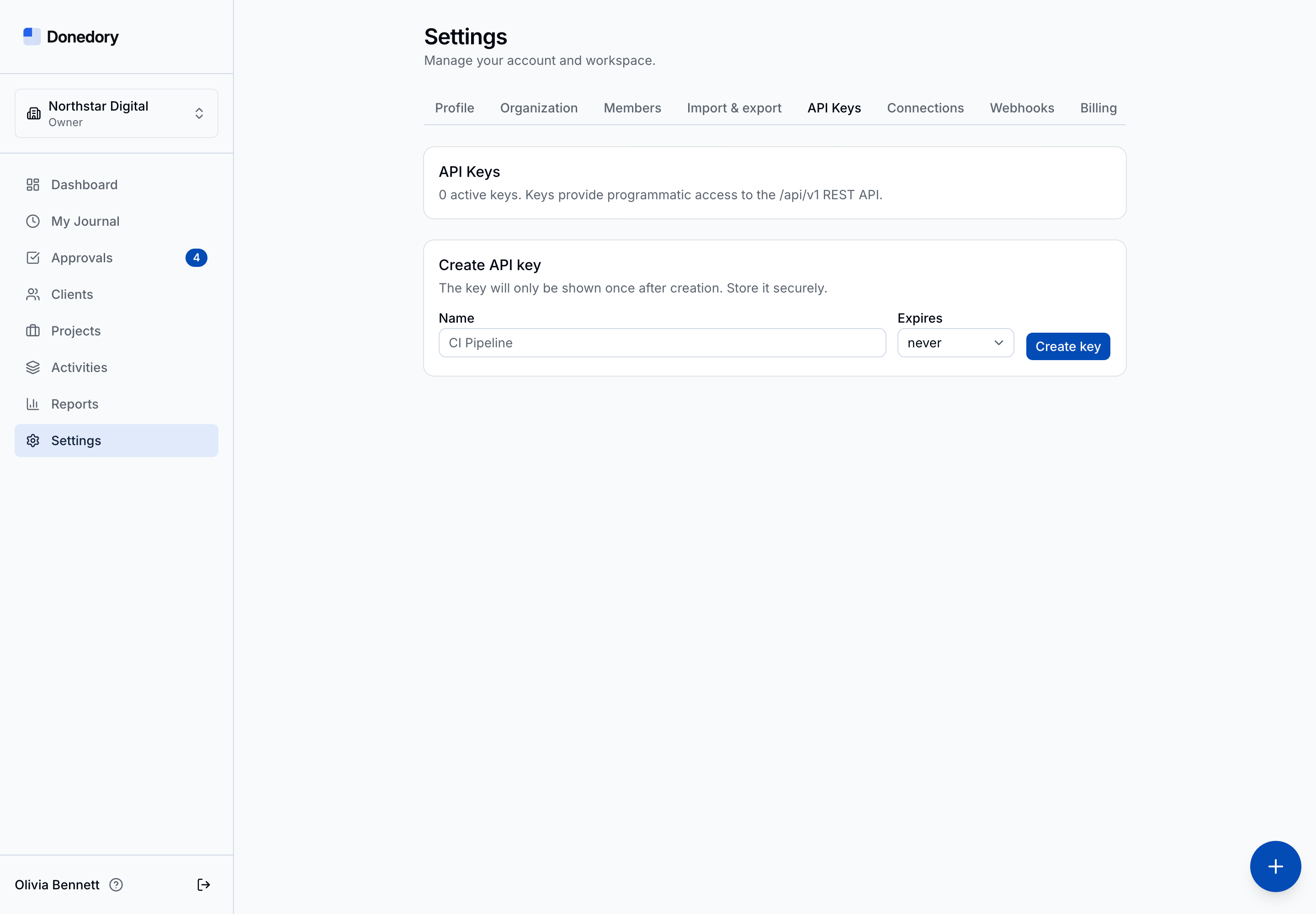
Use API Keys to create credentials for the /api/v1 REST API. Give each key a descriptive name and choose its expiration. The full key is shown only once after creation.
Tips
- Store a new key securely when it is displayed.
- Use separate keys for separate integrations so they can be revoked individually.
- The current time-entry API expresses durations as whole seconds.
Settings: Webhooks
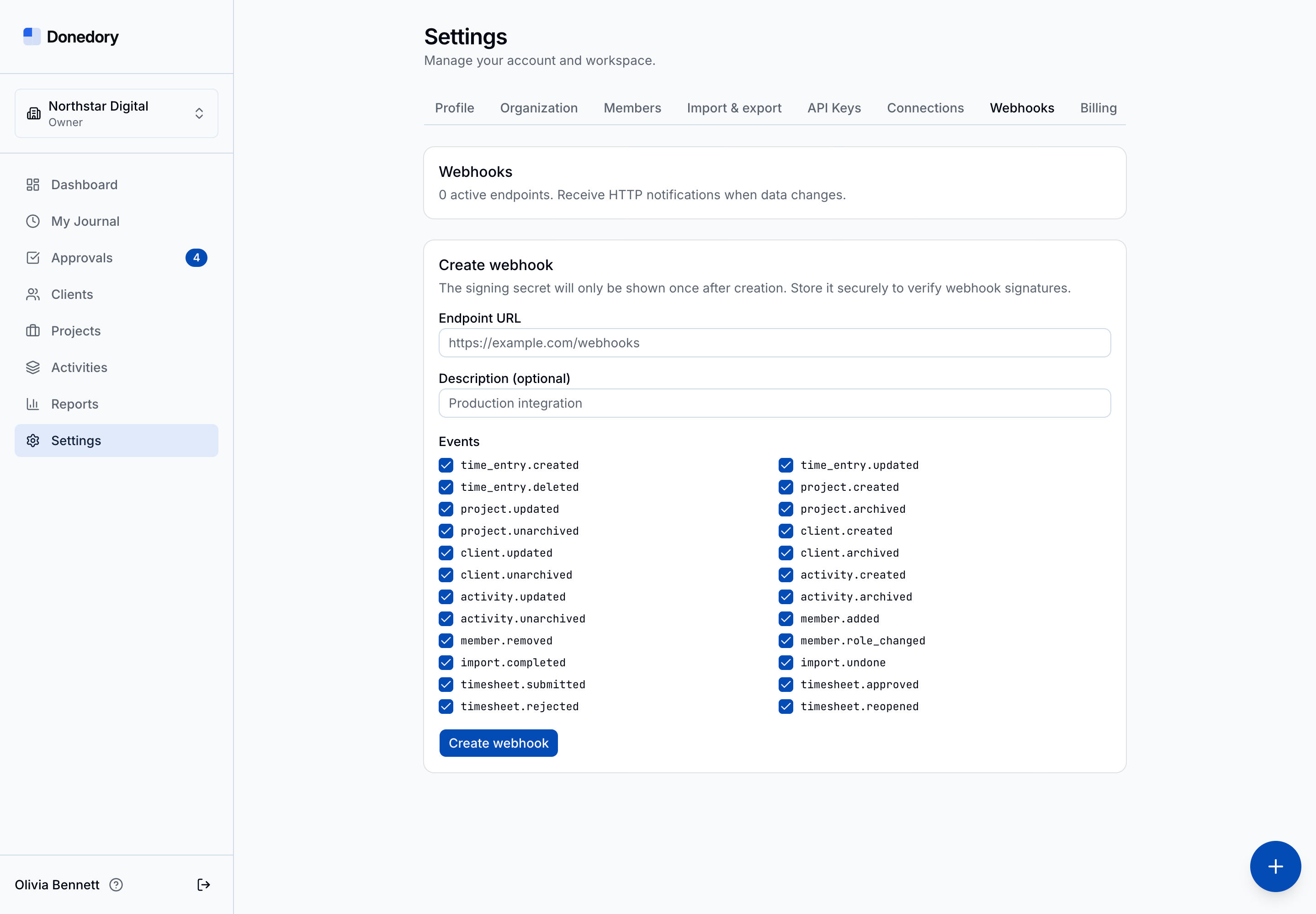
Create a webhook with an endpoint URL, optional description, and the events your integration needs. Donedory sends HTTP notifications when those events occur. The signing secret is displayed once when the webhook is created.
Tips
- Current events include time_entry.created, time_entry.updated, and time_entry.deleted; client, project, activity, and member changes; import.completed and import.undone; and timesheet.submitted, approved, rejected, and reopened.
- Store the signing secret and use it to verify webhook signatures.
- Webhook delivery is disabled in this screenshot demo.
Settings: Billing
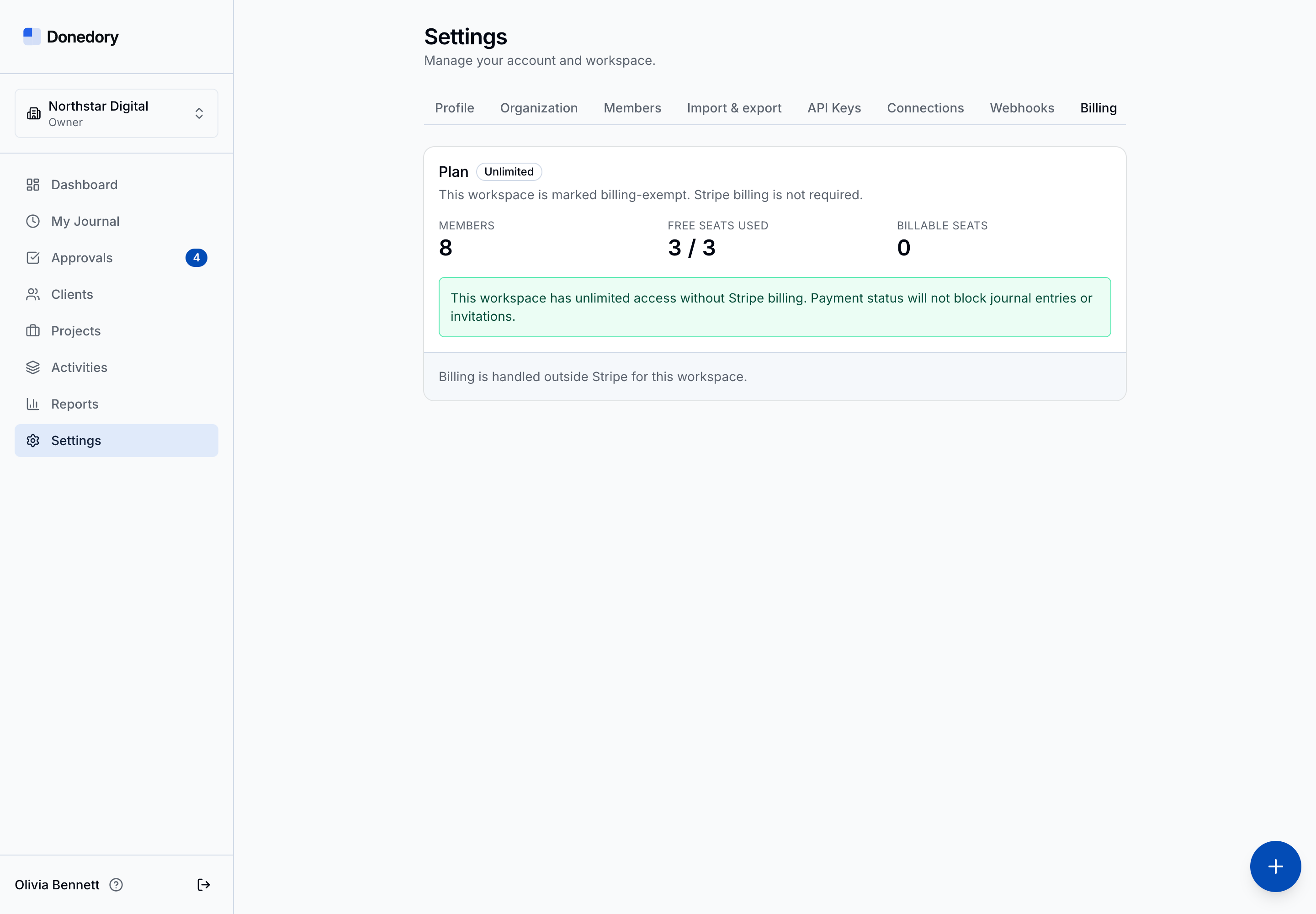
The Billing tab shows plan status, workspace members, and billable seats. The first 3 seats are free; additional seats cost $4.99 per month or $49 per year. Only the workspace owner can manage the subscription.
Tips
- The demo’s Unlimited label represents its billing exemption, not a standard public plan.
- Adding a fourth member starts a seven-day grace period to set up billing.
- If billing is required, existing records, reports, and exports remain available.
Make the next week a little clearer
Good work deserves
a clear record.
Bring your team’s hours together in Donedory.